 7cc4a16aa7
## Summary of the Pull Request

Adds a unit selection setting to the Performance Monitor extension in
Command Palette that allows users to choose how network transmission
speed is displayed. The setting offers three options: bits per second
(Kbps/Mbps/Gbps, the default), bytes per second (KB/s/MB/s/GB/s), and
binary bytes per second using IEC prefixes (KiB/s/MiB/s/GiB/s).

## PR Checklist

- [ ] **Communication:** I've discussed this with core contributors
already. If the work hasn't been agreed, this work might be rejected
- [ ] **Tests:** Added/updated and all pass
- [ ] **Localization:** All end-user-facing strings can be localized
- [ ] **Dev docs:** Added/updated
- [ ] **New binaries:** Added on the required places
- [ ] [JSON for
signing](https://github.com/microsoft/PowerToys/blob/main/.pipelines/ESRPSigning_core.json)
for new binaries
- [ ] [WXS for
installer](https://github.com/microsoft/PowerToys/blob/main/installer/PowerToysSetup/Product.wxs)
for new binaries and localization folder
- [ ] [YML for CI
pipeline](https://github.com/microsoft/PowerToys/blob/main/.pipelines/ci/templates/build-powertoys-steps.yml)
for new test projects
- [ ] [YML for signed
pipeline](https://github.com/microsoft/PowerToys/blob/main/.pipelines/release.yml)
- [ ] **Documentation updated:** If checked, please file a pull request
on [our docs
repo](https://github.com/MicrosoftDocs/windows-uwp/tree/docs/hub/powertoys)
and link it here: #xxx

## Detailed Description of the Pull Request / Additional comments

The following files were changed:

- **`NetworkSpeedUnit.cs`** (new): Enum defining the three supported
unit modes — `BitsPerSecond`, `BytesPerSecond`, and
`BinaryBytesPerSecond`.

- **`SettingsManager.cs`** (new): A `JsonSettingsManager` subclass for
the Performance Monitor extension. Defines a `ChoiceSetSetting` for
`NetworkSpeedUnit` (default: `BitsPerSecond`), stored under the
`performanceMonitor` namespace in the shared CmdPal `settings.json`.

- **`PerformanceWidgetsPage.cs`**:
- `PerformanceWidgetsPage` constructor now accepts `SettingsManager` and
passes it to `SystemNetworkUsageWidgetPage`.
- `SystemNetworkUsageWidgetPage` stores the settings manager and calls
`SpeedToString()`, which dispatches via a switch expression to
`FormatAsBitsPerSecString()` (e.g. `12.5 Mbps`),
`FormatAsBytesPerSecString()` (e.g. `1.6 MB/s`), or
`FormatAsBinaryBytesPerSecString()` (e.g. `1.5 MiB/s`) based on the
selected unit.

- **`PerformanceMonitorCommandsProvider.cs`**: Holds the
`SettingsManager`, passes it to both the list page and dock band via
`SetEnabledState()`, exposes `Settings` on the provider, and adds the
settings page to the command's `MoreCommands`. The crash-recovery
hardening from main (`ProviderCrashSentinel`,
`TryReactivateImmediately`, `SetDisabledState`, thread-safe locking) is
fully preserved and integrated with the settings manager.

- **`Resources.resw`**: Updated `Network_Speed_Unit_Setting_Title` and
`Network_Speed_Unit_Setting_Description` to neutral language; added
three choice label strings (`Network_Speed_Unit_BitsPerSec`,
`Network_Speed_Unit_BytesPerSec`,
`Network_Speed_Unit_BinaryBytesPerSec`). Also includes the
disabled-state strings merged from main.

## Validation Steps Performed

- Manually verified that the setting appears in the Performance Monitor
extension's settings page (accessible via the ⋯ context menu on the
Performance Monitor command item).
- Verified that network speed values display in Kbps/Mbps/Gbps by
default, switch to KB/s/MB/s/GB/s when the bytes option is selected, and
switch to KiB/s/MiB/s/GiB/s when the binary bytes option is selected.
- Setting persists across Command Palette restarts via the shared CmdPal
settings file.
- Verified that the crash-recovery re-enable flow correctly restores
pages with the settings manager wired up.

<!-- START COPILOT ORIGINAL PROMPT -->


<details>

<summary>Original prompt</summary>

>
> ----
>
> *This section details on the original issue you should resolve*
>
> <issue_title>[Command Palette] Allows network transmission speed units
to be switched between bits per second and bytes per
second</issue_title>
> <issue_description>### Description of the new feature / enhancement
>
> Add a setting that allows network monitoring in the Command Palette
Dock to be displayed in bytes per second.
>
> ### Scenario when this would be used?
>
> In everyday usage, byte units are more commonly used.
>
> ### Supporting information
>
> _No response_</issue_description>
>
> ## Comments on the Issue (you are @copilot in this section)
>
> <comments>
> <comment_new><author>@niels9001</author><body>
> @copilot Can you add a setting for this?</body></comment_new>
> </comments>
>


</details>


<!-- START COPILOT CODING AGENT SUFFIX -->

- Fixes microsoft/PowerToys#46271

<!-- START COPILOT CODING AGENT TIPS -->
---

✨ Let Copilot coding agent [set things up for
you](https://github.com/microsoft/PowerToys/issues/new?title=✨+Set+up+Copilot+instructions&body=Configure%20instructions%20for%20this%20repository%20as%20documented%20in%20%5BBest%20practices%20for%20Copilot%20coding%20agent%20in%20your%20repository%5D%28https://gh.io/copilot-coding-agent-tips%29%2E%0A%0A%3COnboard%20this%20repo%3E&assignees=copilot)
— coding agent works faster and does higher quality work when set up for
your repo.

---------

Co-authored-by: copilot-swe-agent[bot] <198982749+Copilot@users.noreply.github.com>
Co-authored-by: niels9001 <9866362+niels9001@users.noreply.github.com>

Microsoft PowerToys
Microsoft PowerToys is a collection of utilities that help you customize Windows and streamline everyday tasks.
Installation · Documentation · Blog · Release notes
🔨 Utilities
PowerToys includes over 25 utilities to help you customize and optimize your Windows experience:
 Advanced Paste
 Always on Top
 Awake
Awake Color Picker
 Command Not Found
 Command Palette
 Crop And Lock
 Environment Variables
 FancyZones
 File Explorer Add-ons
 File Locksmith
 Hosts File Editor
 Image Resizer
 Keyboard Manager
 Light Switch
 Mouse Utilities
 Mouse Without Borders
 New+
New+ Peek
Peek PowerRename
 PowerToys Run
 Quick Accent
 Registry Preview
 Screen Ruler
 Shortcut Guide
 Text Extractor
 Workspaces
 ZoomIt
📋 Installation
For detailed installation instructions and system requirements, visit the installation docs.
But to get started quickly, choose one of the installation methods below:
Download .exe from GitHub
Go to the PowerToys GitHub releases, click Assets to reveal the downloads, and choose the installer that matches your architecture and install scope. For most devices, that's the x64 per-user installer.
| Description | Filename |
|---|---|
| Per user - x64 | PowerToysUserSetup-0.98.1-x64.exe |
| Per user - ARM64 | PowerToysUserSetup-0.98.1-arm64.exe |
| Machine wide - x64 | PowerToysSetup-0.98.1-x64.exe |
| Machine wide - ARM64 | PowerToysSetup-0.98.1-arm64.exe |
Microsoft Store
You can easily install PowerToys from the Microsoft Store:

WinGet
Download PowerToys from WinGet. Updating PowerToys via winget will respect the current PowerToys installation scope. To install PowerToys, run the following command from the command line / PowerShell:
User scope installer [default]
winget install Microsoft.PowerToys -s winget
Machine-wide scope installer
winget install --scope machine Microsoft.PowerToys -s winget
Other methods
There are community driven install methods such as Chocolatey and Scoop. If these are your preferred install solutions, you can find the install instructions there.
✨ What's new?
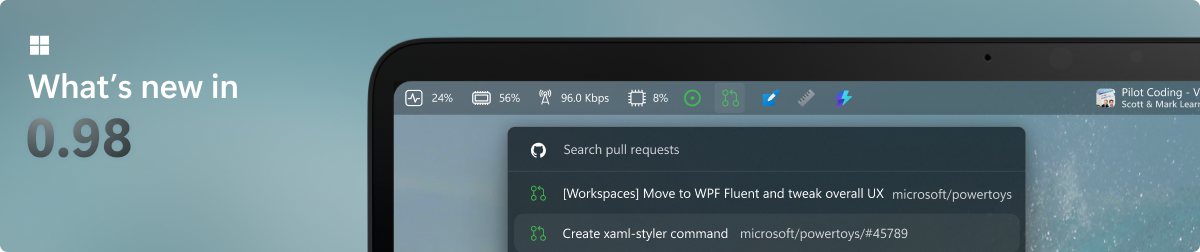
To see what's new, check out the release notes.
🛣️ Roadmap
We are planning some nice new features and improvements for the next releases – PowerDisplay, Command Palette improvements and a brand-new Shortcut Guide experience! Stay tuned for v0.99!
❤️ PowerToys Community
The PowerToys team is extremely grateful to have the support of an amazing active community. The work you do is incredibly important. PowerToys wouldn't be nearly what it is today without your help filing bugs, updating documentation, guiding the design, or writing features. We want to say thank you and take time to recognize your work. Your contributions and feedback improve PowerToys month after month!
Contributing
This project welcomes contributions of all types. Besides coding features / bug fixes, other ways to assist include spec writing, design, documentation, and finding bugs. We are excited to work with the power user community to build a set of tools for helping you get the most out of Windows. We ask that before you start work on a feature that you would like to contribute, please read our Contributor's Guide. We would be happy to work with you to figure out the best approach, provide guidance and mentorship throughout feature development, and help avoid any wasted or duplicate effort. Most contributions require you to agree to a Contributor License Agreement (CLA) declaring that you grant us the rights to use your contribution and that you have permission to do so. For guidance on developing for PowerToys, please read the developer docs for a detailed breakdown. This includes how to setup your computer to compile.
Code of Conduct
This project has adopted the Microsoft Open Source Code of Conduct.
Privacy Statement
The application logs basic diagnostic data (telemetry). For more privacy information and what we collect, see our PowerToys Data and Privacy documentation.