 69a600e249
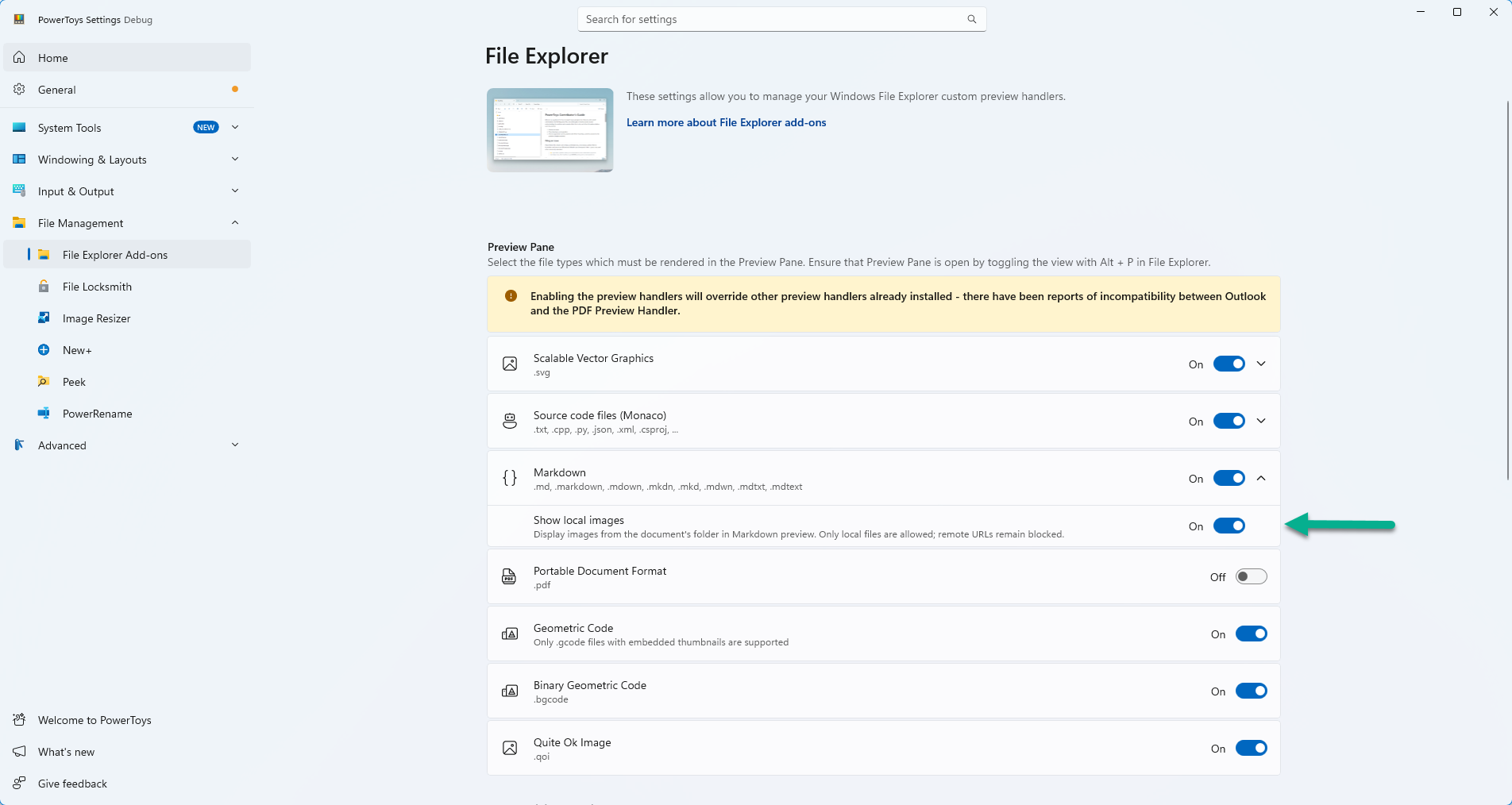
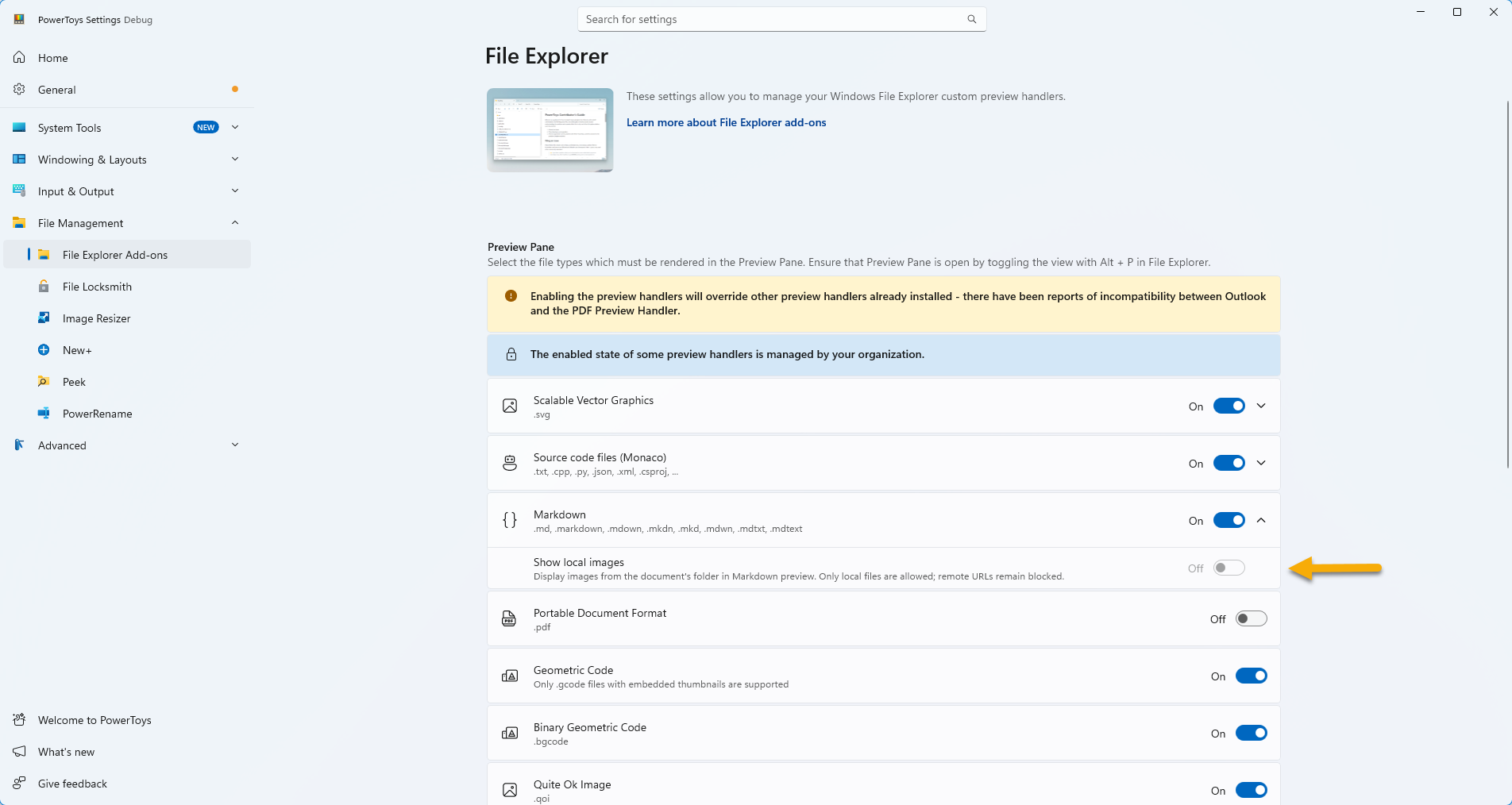
## Summary - Adds a "Show local images" toggle in PowerToys Settings (File Explorer > Markdown) - When enabled, renders images referenced via relative paths or local file paths in the Markdown preview pane - Serves validated local image files on a WebView2 virtual host (`https://localmdimages/`) directly from the handler's resource filter - Supports local paths and UNC/network share paths - Default: OFF (preserves existing behavior) - GPO support: Admins can force-enable or force-disable via Group Policy Fixes #40787 Fixes #3713 ## Security model | Scenario | Behavior | |----------|----------| | Setting OFF (default) | All images blocked, info bar shown. Raw HTML `src` is rewritten to `#` in this state too, so a `data:` image cannot render (it is resolved internally and never reaches the resource filter) | | Setting ON + relative path (`media/img.png`) | Resolved against .md directory, rendered if under that tree | | Setting ON + path traversal (`../../secret.png`) | Blocked — resolved with `Path.GetFullPath` and checked with `Path.GetRelativePath`, including percent-encoded traversal on the serving side | | Setting ON + junction/symlink below the allowed path | Blocked — each component of the resolved path is rejected if it carries `FileAttributes.ReparsePoint`, since lexical containment alone does not prevent redirection | | Setting ON + UNC relative path (`images/pic.png` on `\\server\share`) | Allowed within share root | | Setting ON + remote URL (`https://evil.com/track.png`) | Always blocked | | data:/javascript: URI | Always blocked, in both setting states | | `srcset` on a raw HTML `<img>` | Attribute removed, in both setting states — its candidates are not validated by the `src` sanitizer | | Script execution | Always disabled (`IsScriptEnabled = false`) | | Mark-of-the-Web (MotW) | Explorer blocks preview of MotW-tagged files before our code runs (OS-level protection) | ## GPO Policy - Policy name: `MarkdownAllowLocalImages` - Registry: `HKLM\SOFTWARE\Policies\PowerToys\MarkdownAllowLocalImages` (DWORD: 1=enabled, 0=disabled) - ADMX category: **PowerToys > File Explorer Preview** - Uses `getConfiguredValue()` (individual module setting pattern, no global utility fallback) ## Screenshots ### Settings UI — new toggle _"Show local images" toggle nested under the Markdown preview section (File Explorer add-ons). Captured from a Debug build of this branch (the Settings app only runs standalone in Debug builds):_ <img width="1904" height="1014" alt="07-settings-ui-toggle" src="https://raw.githubusercontent.com/st-gr/PowerToys/pr-47857-assets/07-settings-ui-toggle.png" /> ### Settings UI — locked by GPO _With the `MarkdownAllowLocalImages` policy set to Disabled, the toggle is forced Off and grayed out, and the "managed by your organization" info bar appears:_ <img width="1904" height="1014" alt="08-settings-ui-gpo-locked" src="https://raw.githubusercontent.com/st-gr/PowerToys/pr-47857-assets/08-settings-ui-gpo-locked.png" /> ### GPO in Group Policy Editor _New "File Explorer Preview" category under PowerToys, showing the policy and its description:_ <img width="1472" height="847" alt="01-gpedit-category" src="https://github.com/user-attachments/assets/54acb539-345b-4512-9685-35930966a142" /> ### GPO set to Enabled _Policy enabled state in gpedit.msc:_ <img width="1473" height="848" alt="02-gpedit-policy-enabled" src="https://github.com/user-attachments/assets/883f6b22-179d-4311-983d-2d835e4d897a" /> ### Preview with local images rendered _Markdown preview with local image rendering enabled — relative path image renders:_ <img width="1430" height="881" alt="03-preview-images-shown" src="https://github.com/user-attachments/assets/4a7ac7f0-d57d-4feb-bf2f-7e3c9093ab52" /> ### Info bar for blocked remote images _When the document contains remote (http/https) image URLs, they are always blocked and an info bar is shown:_ <img width="1412" height="1035" alt="04-preview-infobar" src="https://github.com/user-attachments/assets/0f798bbc-ae1b-43bf-b343-394080fff8e3" /> ### GPO disabled — all images blocked _With GPO set to disabled, all images (local and remote) are blocked. Info bar reads "Some pictures have been blocked...":_ <img width="1417" height="704" alt="05-gpo-disabled-blocked" src="https://github.com/user-attachments/assets/1c7a09a7-f4b9-467c-a0c0-f670680d6a2d" /> ### Mark-of-the-Web protection _Files copied from a network source carry a Zone Identifier (MotW). Explorer blocks the preview entirely before our code runs — an OS-level security layer:_ <img width="1114" height="591" alt="06-MotW-tagged" src="https://github.com/user-attachments/assets/09cc2055-1e12-4c11-81fb-abd83ab8249c" /> ## Implementation Two layers were blocking images: 1. **Markdig AST layer** (`HTMLParsingExtension.cs`): replaced image URLs with `#` 2. **WebView2 layer** (`MarkdownPreviewHandlerControl.cs`): returned HTTP 403 for all non-HTML requests Changes: - `HTMLParsingExtension`: conditionally resolves markdown `` images to virtual host URLs with path traversal protection - `MarkdownHelper`: regex-rewrites relative `src=""` in raw HTML `<img>` tags to virtual host URLs - `MarkdownPreviewHandlerControl`: serves `https://localmdimages/` requests in the `WebResourceRequested` handler — the URL is resolved back to a file path, re-validated for containment against the allowed base path (document directory, or share root for UNC), and the bytes are returned via `CreateWebResourceResponse` with the proper content type. Note: `SetVirtualHostNameToFolderMapping` is deliberately NOT used for images — WebView2 Runtime 150+ no longer serves files from UNC/network folder mappings (verified by A/B test on 150.0.4078.48); serving from the handler works uniformly for local and UNC paths - Settings UI: new toggle nested under the Markdown preview expander, with GPO lock support - Handler `Settings.cs`: reads `EnableMdLocalImages` via `SettingsUtils`, GPO override via `GPOWrapper` - GPO: `gpo.h` individual module setting, ADMX/ADML with `FileExplorerPreview` category ## Known limitation Peek also renders Markdown through `FilePreviewCommon.MarkdownHelper`, but calls it without the local-images arguments, so **Peek does not show local images even when the setting is enabled** — it keeps the existing behavior of blocking every image. With the setting on, the same file therefore renders differently in the preview pane (images shown) and in Peek (images blocked). This is deliberate for now: wiring the setting through Peek means changing a module that is otherwise untouched by this PR. Verified that Peek itself is unaffected — it still renders Markdown correctly against the shared assembly, with images blocked as before. ## Test plan - [x] Toggle OFF: images blocked, "pictures blocked" info bar shows (existing behavior) - [x] Toggle ON with relative paths: `` renders - [x] Toggle ON with HTML img: `<img src="images/test.png">` renders - [x] Toggle ON with path traversal: `` — blocked - [x] Toggle ON with remote URL: `` — blocked, info bar shown - [x] UNC path: preview works on `\\server\share\...\file.md` with relative images - [x] UNC path with `../` within share: allowed (resolves within share root) - [x] Regression tested on WebView2 Runtime 150.0.4078.48: local + UNC images render, blocked cases (traversal, data:, remote, encoded traversal) stay blocked - [x] GPO Enabled: images forced on - [x] GPO Disabled: images forced off - [x] GPO Not Configured: user controls toggle - [x] gpedit.msc: policy appears under PowerToys > File Explorer Preview - [x] MotW-tagged files: Explorer blocks preview before our code runs - [x] Settings UI toggle locked when GPO configured (grayed out for both forced states) - [x] Other preview handlers (Monaco, SVG, PDF) unaffected 🤖 Generated with [Claude Code](https://claude.com/claude-code) --------- Co-authored-by: Claude Opus 4.6 (1M context) <noreply@anthropic.com>

Microsoft PowerToys
Microsoft PowerToys is a collection of utilities that help you customize Windows and streamline everyday tasks.
Installation · Documentation · Blog · Release notes
🔨 Utilities
PowerToys includes over 30 utilities to help you customize and optimize your Windows experience:
 Advanced Paste
 Always on Top
 Awake
Awake Color Picker
 Command Not Found
 Command Palette
 Crop And Lock
 Environment Variables
 FancyZones
 File Explorer Add-ons
 File Locksmith
 Grab And Move
 Hosts File Editor
 Image Resizer
 Keyboard Manager
 Light Switch
 Mouse Utilities
 Mouse Without Borders
 New+
New+ Peek
Peek PowerDisplay
 PowerRename
 PowerToys Run
 Quick Accent
 Registry Preview
 Screen Ruler
 Shortcut Guide
 Text Extractor
 Workspaces
 ZoomIt
📦 Installation
For detailed installation instructions and system requirements, visit the installation docs.
But to get started quickly, choose one of the installation methods below:
Download the .exe file from GitHub
Go to the PowerToys GitHub releases, scroll down and select Assets to reveal the installation files, and choose the one that matches your architecture and install scope. For most devices, that would be x64 per-user.
Microsoft Store
You can easily install PowerToys from the Microsoft Store:

WinGet
Download PowerToys from [WinGet](https://github.com/microsoft/winget-cli#installing-the-client). Updating PowerToys via winget will respect the current PowerToys installation scope. To install PowerToys, run the following command from the command line / PowerShell:
- User scope installer (default)
winget install Microsoft.PowerToys -s winget
- Machine-wide scope installer
winget install --scope machine Microsoft.PowerToys -s winget
Other methods
There are [community driven install methods](https://learn.microsoft.com/windows/powertoys/install#community-driven-install-tools) such as Chocolatey and Scoop. If these are your preferred install solutions, you can find the install instructions there.
✨ What's new?

To see what's new, check out the release notes.
🛣️ Roadmap
We are planning some nice new features and improvements for the next releases – a brand-new Shortcut Guide experience, ensuring it's easier to find and install Command Palette extensions and so much more! Stay tuned for v0.100!
❤️ PowerToys Community
The PowerToys team is extremely grateful to have the support of an amazing active community. The work you do is incredibly important. PowerToys wouldn't be nearly what it is today without your help filing bugs, updating documentation, guiding the design, or writing features. We want to say thank you and take time to recognize your work. Your contributions and feedback improve PowerToys month after month!
Contributing
This project welcomes contributions of all types. Besides coding features / bug fixes, other ways to assist include spec writing, design, documentation, and finding bugs. We are excited to work with the power user community to build a set of tools for helping you get the most out of Windows. We ask that before you start work on a feature that you would like to contribute, please read our Contributor's Guide. We would be happy to work with you to figure out the best approach, provide guidance and mentorship throughout feature development, and help avoid any wasted or duplicate effort. Most contributions require you to agree to a Contributor License Agreement (CLA) declaring that you grant us the rights to use your contribution and that you have permission to do so. For guidance on developing for PowerToys, please read the developer docs for a detailed breakdown. This includes how to setup your computer to compile.
Code of conduct
This project has adopted the Microsoft Open Source Code of Conduct.
Privacy statement
The application logs basic diagnostic data (telemetry). For more privacy information and what we collect, see our PowerToys Data and Privacy documentation.